The most recent version of Obsidian mobile (11.1.0), currently only available to Catalyst supporters, includes the beginning of a long planned mobile revamp with new widgets and shortcuts support.
These aren’t necessarily things I am clamoring for; however, the latter (shortcuts) helps solve a problem I have with Obsidian–it is slow to open. In some ways, that’s understandable. The app needs to index potentially many thousands of small text files (and in my case, it certainly does). However, it makes it difficult to use Obsidian as a quick note-taking app. This is where shortcuts come in. The way they work is by appending to a bookmarked note. Since the app can “see” these notes more quickly, the speed is drastically faster. And it doesn’t require opening the app at all to work.
My workflow
Much of my normal note-taking is with a laptop; however, at conferences, I try not to use my laptop and rely on a phone or an iPad (mini). Hence, why the above-mentioned indexing problem is an issue. I often want to jot down a few notes, maybe a research idea or a comment to follow up with a presenter on, and maybe attach a photo of a slide or poster. This is not complicated, but it can be tedious to do when things are moving quickly.
Enter Obsidian.
Text notes
The new “Append to bookmarked note” Apple Shortcut action allows for very quick processing. As long as I have set up a note for the session ahead of time, something I try to do when going through the conference schedule ahead of time, and bookmark these notes, adding text to them is simple. The shortcut, shown below, is very simple–prompt for text and feed that text into the bookmarked note. Importantly, the Obsidian action allows you to pick from your bookmarked notes, so as long as you don’t use bookmarks as some kind of staging area (I hardly use them at all), you’ll have a very short list to choose from.
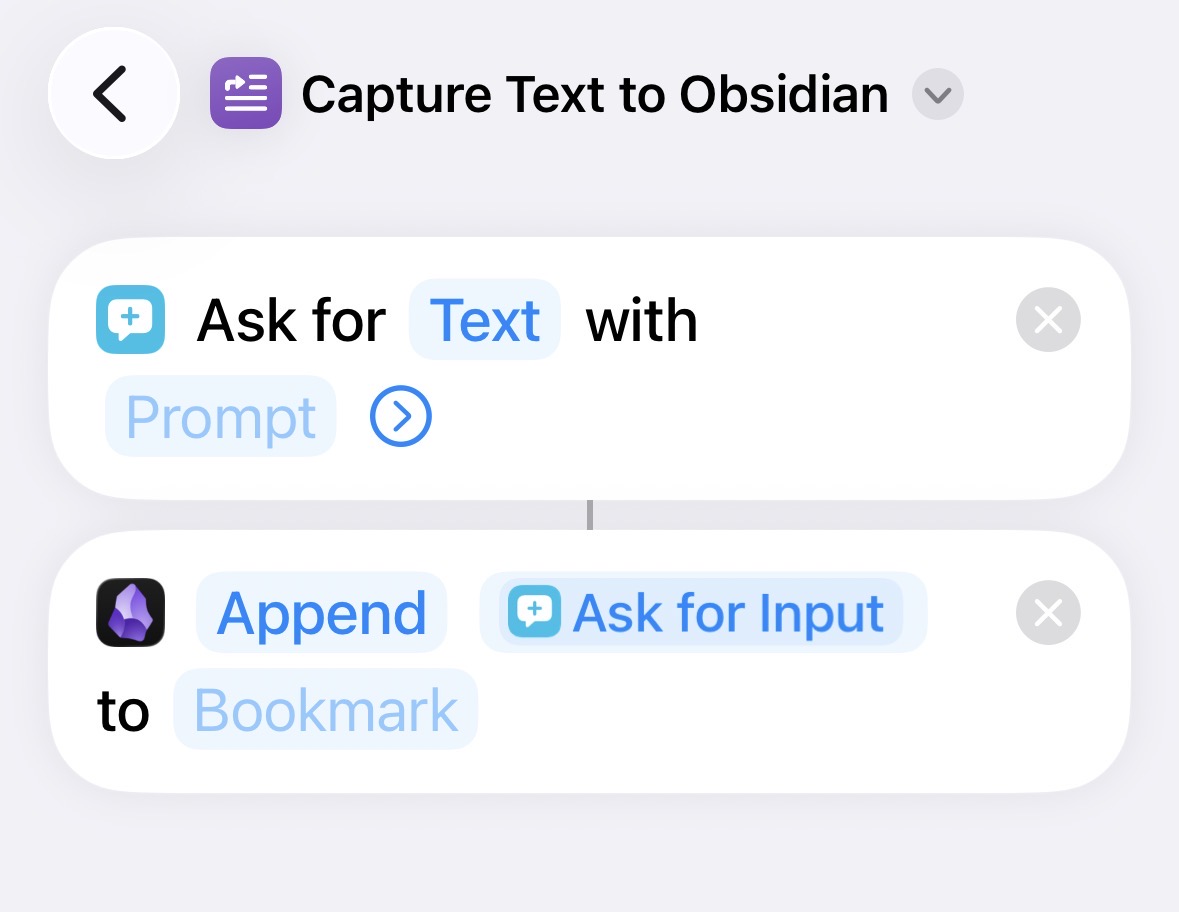
Text is appended completely unformatted, so there is some processing to be done after the fact; however, you could build in some text actions to pre-format the text. I like going through conference notes after the fact, so the post-processing is actually helpful for reminding me to do that. But it is easily modified to your uses.
Photos
The second shortcut is more complicated. As I mentioned, I sometimes want to include photos in my notes. Not always, but I never know when the need might arise. Below is the shortcut workflow.
- Get the datetime for photo renaming
- Open the camera and take a photo
- Save that photo in iCloud (I keep my Obsidian vault in iCloud, you could modify this with other syncing arrangements)
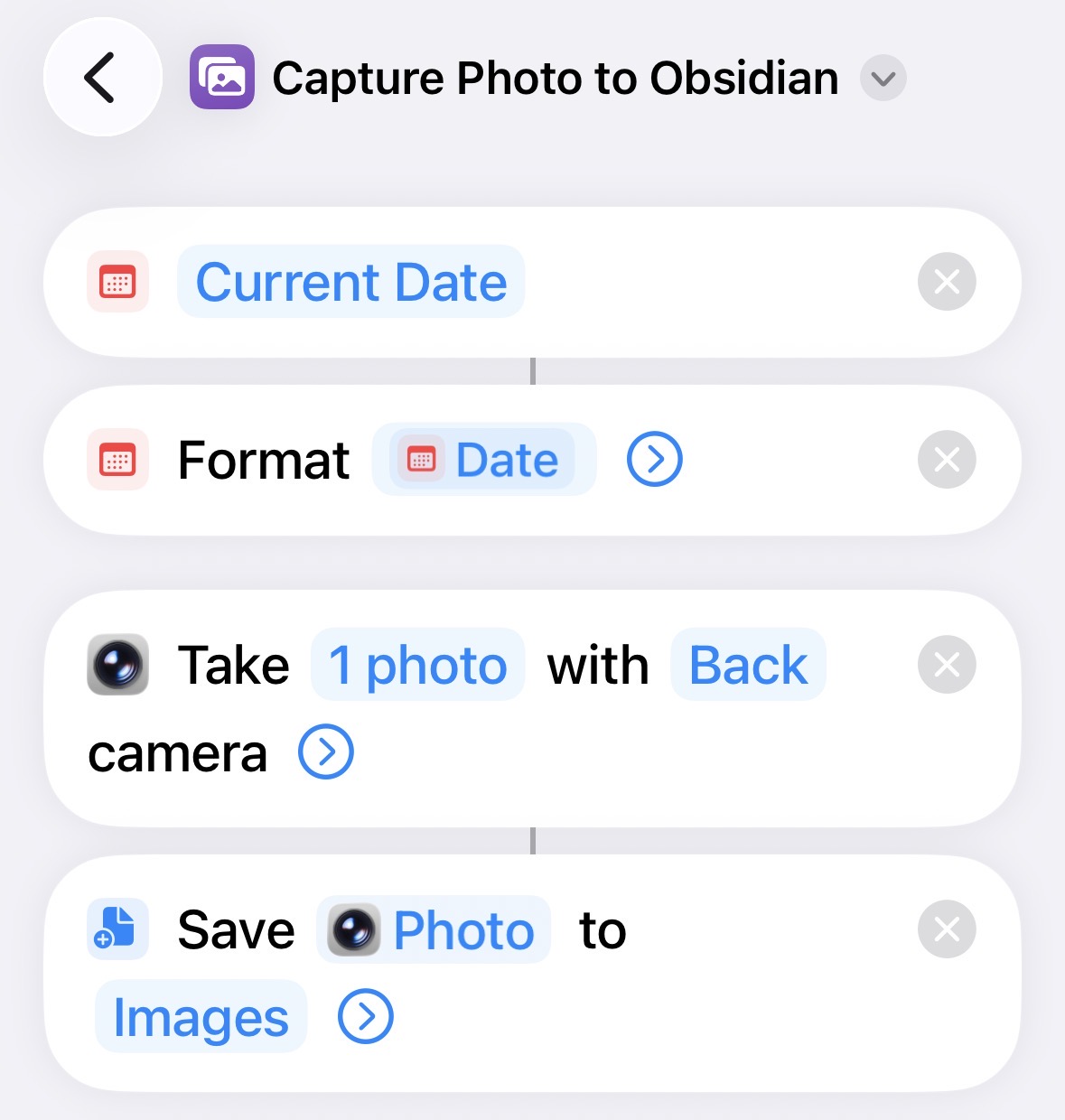
- Rename the photo to something more usable. In this case,
img-datetime.jpeg - Here’s the magic Pull the file name (since it’s already in my vault, I can link to it directly), plop that file name into some formatted text (a wikilink), and append that text in the bookmarked note
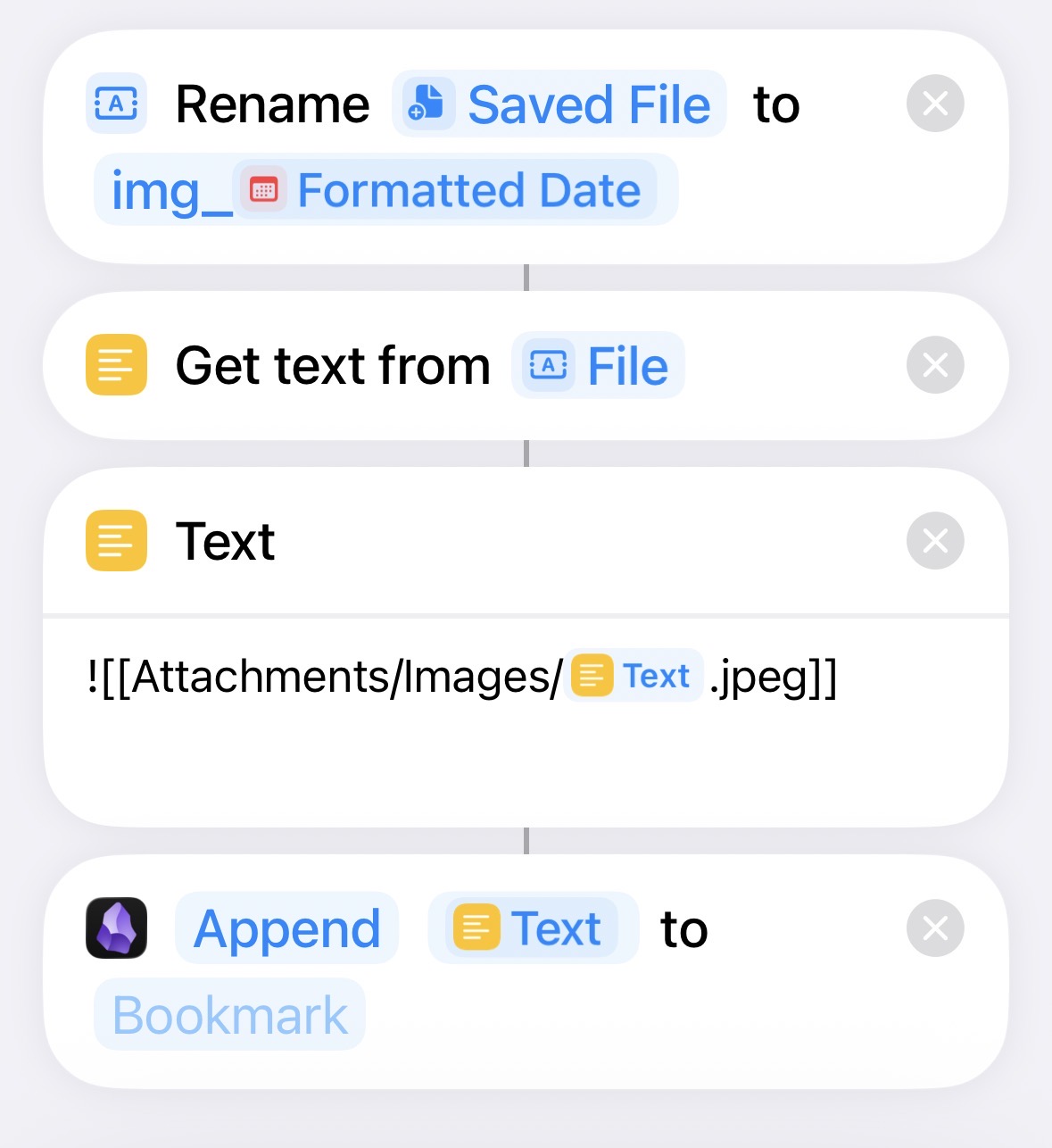
Voilà! Since I saved the photo in my vault, the photo just shows up, ready to be processed later.
Importantly, I haven’t had to open Obsidian at all in the process. I can focus on listening, thinking about the concepts, and saving the bits that are interesting for later work or follow-up. Neat!